REMOVE EXTRA SPACES
What is Toolerz Remove Extra Spaces?
Toolerz Extra Spaces Remover is a free online tool where you can remove extra spaces between two words from a text or string.
You will need a free flow of information in text or numerical format for better readability and understandability in a consistent manner.
You will certainly find it difficult if you observe extra spaces in the text content. Therefore removing the extra spaces by employing tools is the best option.
Several online companies have programmed logic to solve the problem and below you can find a series of free online tools to remove extra space.www.tooolerz.com
Usually, any ‘remove extra spaces tool’ is custom-made and they are programmed to work on a wide range of browsers such as Windows, Safari, Edge, Firefox, Chrome, MAC, or Chrome browsers.
Working of Toolerz's "Extra Space Remover"
This specific tool shall remove extra spaces between words and it can be done in this manner.
Original text: “Hello, How are You?”
You can find the text on the removal of extra spaces: “Hello, How are you?”
This specific removal tool can not only remove unwanted spaces but also eliminate additional tabs, newlines, and unessential whitespace characters.
You can make an easy importation of the files and export the cleaned-up text of the file to the destination.
You can either type or just paste the text and the tool will automatically remove all extra spaces that lay between words, and sentences.
For instance,
If you type in “Type SIMPLE easy” then you will get converted to “Type Simple Easy.”
In addition, the tool shall eliminate unnecessary tabs and newlines with a single space and you can remove the extra spaces, be it a text or a code.
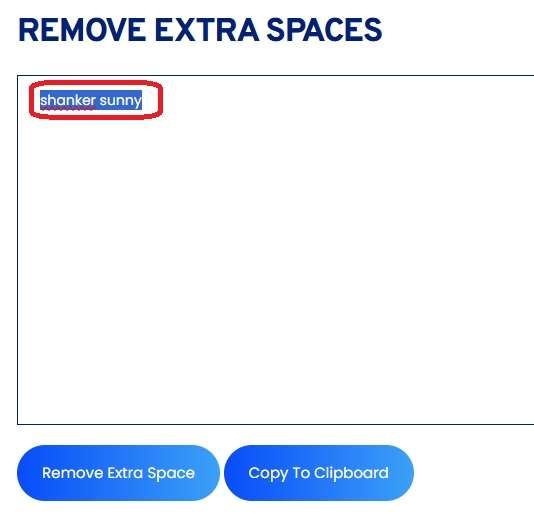
Why does it become an essential feature to remove extra spaces in text formats?
Usually, it is a common way of making text notes by including white spaces and tab spaces for better appearance and clarity.
Moreover, spaces and additional tabs create an increase in file size thereby affecting the efficiency of the file.
If you're planning to buy a new vehicle, check out our Car Loan Calculator to estimate your loan EMI and make informed financial decisions.
Benefits of Remove Extra Spaces Tool
The "Remove Extra Spaces" tool offers quick and effective solutions for cleaning up messy or unformatted text.
One of its biggest benefits is saving time by automatically deleting unwanted spaces that can occur during copying, pasting, or editing content.
Whether you're working on a document, web content, code, or data files, this tool helps ensure your text remains clean and professional.
It improves readability, enhances formatting consistency, and makes content easier to scan and understand. For developers and data analysts, it also reduces errors caused by irregular spacing in scripts or datasets.
This tool is especially handy for students, writers, and digital marketers who need to maintain polished and well-structured text.
By streamlining the cleanup process, the Remove Extra Spaces tool boosts productivity and helps create more user-friendly and SEO-optimized content in just a few seconds.
Simple Steps for Extra Space Removal Free Tool:
On the web browser, open the free online extra space removal tool.
Do use the command such as copy-paste wherever it is applicable. And, then use the load from URL option and upload the data or file.
Then, click the ‘remove extra spaces’
The tool will remove the unwanted white spaces/tab spaces from the pasted text.
After running the tool, copy the text and paste it into the desired location.
Key Features of the Remove Extra Spaces Tool
The Remove Extra Spaces tool is designed to quickly clean up your text by eliminating unnecessary spaces. It's simple, efficient, and perfect for improving the readability and formatting of any content.
One of its key features is the ability to remove extra spaces between words, at the beginning or end of lines, and even blank lines within the text. With just one click, your text becomes clean and well structured.
It supports large blocks of text and delivers instant results, making it ideal for writers, students, developers, and anyone working with copied or messy content.
Another great feature is its user-friendly interface no technical skills needed! You can also easily copy the cleaned text for use in documents, code, or online forms.
Whether you're formatting a document or cleaning up data, this tool saves time and ensures your content looks neat and professional.
How to Get Rid of Unnecessary Spaces in Word?
Removing unnecessary spaces in Microsoft Word is easy and helps make your document look cleaner and more professional. To start, open the Find and Replace feature by pressing Ctrl + H. In the “Find what” box, type two spaces (press the spacebar twice), and in the “Replace with” box, type one space. Click “Replace All.” Repeat this process until Word says it made zero replacements. This helps remove extra spaces between words.
To remove extra spaces at the beginning or end of lines, enable Show/Hide ¶ from the Home tab to see where extra spaces or tabs are. You can also use Word’s built-in Editor tool to identify spacing issues.
Cleaning up spaces ensures better formatting, improves readability, and is especially useful when preparing documents for printing or sharing professionally.
Procedure to Apply Load Sample Data in the Extra Space Removal Tool:
Employ the following steps in order in the ‘remove extra spaces' tool:
Click on the load sample data button.
Obtain the sample data in the upper section by clicking the ‘load sample data’ button.
The sample data that appears shall be in a format, say, ‘Greeting by Url-decode.com.’
Click on the remove extra spaces button and you will get the results as Greeting by url-decode.com.
Then, copy the resulting text and paste it to your desired location.
Note:
With this tool, you can eliminate line breaks, duplicate lines from strings, or text, etc.www.toolerz.com
Applications of Extra Spaces Remover
The "Extra Spaces Remover" tool is essential for streamlining text and improving readability across various applications.
It helps remove unnecessary spaces between words, sentences, and paragraphs, ensuring that the text appears neat and professional.
This tool is especially beneficial for those working with large documents, scripts, or coding, where extra spaces can create inconsistencies and affect formatting.
In web development, this tool is widely used to clean up HTML, CSS, or JavaScript code, eliminating unnecessary white spaces that may impact page load times and performance.
For content creators, it aids in ensuring that articles, blogs, or SEO-driven content are free from excessive spaces, enhancing both user experience and readability.
Moreover, for individuals working with data sets, removing extra spaces ensures cleaner datasets, improving data analysis processes. Overall, the Extra Spaces Remover enhances efficiency, readability, and data processing across diverse fields.
You may also find our Investment Calculator helpful in planning your financial goals effectively.
Advantages of Remove Extra Spaces Tool
The "Remove Extra Spaces" tool is a simple yet powerful utility that enhances the quality and readability of your text.
One of its main advantages is improving text formatting by eliminating unnecessary spaces, which can cause inconsistencies and affect the presentation of your content.
It is especially useful for cleaning up data copied from various sources or generated by software that includes irregular spacing.
By removing extra spaces, the tool ensures clean, professional-looking text that's easier to read and understand. It also helps in optimizing web content and documents by making them more structured and compact.
This tool is particularly beneficial for writers, coders, editors, and students who want to maintain neat and polished content.
With just a click, it saves time, reduces manual effort, and improves text accuracy — making it a must-have for anyone who works regularly with digital text.
Frequently Asked Questions
Q1. Why is it important to remove extra spaces from text?
Ans: Extra spaces can make your content look untidy and unprofessional. They may also affect formatting and alignment, especially when working with documents, websites, or coding projects.
Q2. Can I remove extra spaces using Microsoft Word?
Ans: Yes, in Microsoft Word, you can use the Find and Replace feature. Simply search for double spaces by pressing Ctrl + H, enter two spaces in the Find field, and one space in the Replace field. Click Replace All to fix it.
Q3. Can removing extra spaces affect my text formatting?
Ans: It may affect formatting if your document relies on multiple spaces for alignment. However, for standard text or code, removing extra spaces usually improves readability and structure.
Q4. Does it change anything other than spaces?
Ans: No, the tool only removes extra spaces. It does not change your words, punctuation, or sentence structure.
Q5. Can I undo the changes after removing spaces?
Ans:Some tools offer an undo or reset option. It’s a good idea to keep a backup of your original text just in case.
Q6. Is there any online tool to remove extra spaces automatically?
Ans:Yes, there are many online tools available to automatically remove extra spaces. Simply search for "remove extra spaces tool," paste your text, and let the tool do the work. These tools are user-friendly and free to use.
Q7. What does a "Remove Extra Spaces" tool do?
Ans:A "Remove Extra Spaces" tool helps clean up your text by removing extra spaces between words, sentences, or lines. It makes your text neater and easier to read.
Q8. Does removing extra spaces affect the content?
Ans:No, removing extra spaces does not change the actual content of the text. It only adjusts the spacing to ensure that each word has a single space between them.
Q9. Can I remove extra spaces in a CSV file?
Ans:Yes, you can remove extra spaces in a CSV file using tools like Excel or data processing scripts. This helps to maintain data consistency when importing or exporting data.
Q10. Why is removing extra spaces important in coding?
Ans:Extra spaces in code can cause formatting errors or increase file size. Removing them helps to keep the code clean, readable, and efficient.
Q11. What does "Remove Extra Spaces" mean?
Ans:Remove Extra Spaces means cleaning up a text by deleting any extra blank spaces between words, lines, or characters. It helps make the text look neat and easier to read.